Before installing and using the CronScheduler Plugin, ensure that your environment meets the following requirements.
The plugin is compatible with the following versions of Mautic:
Make sure your Mautic instance is installed and functioning correctly before installing the plugin.
The plugin relies on the cron expression parser library to evaluate cron schedules and calculate the next execution time for scheduled jobs which contains Cron Notation.
Install the required dependency in your Mautic project:
composer require dragonmantank/cron-expressionUnzip the plugin into the Mautic plugins directory.
The plugin will be placed in:
plugins/CronSchedulerBundle
Clear cache and run bin/console m:a:g
Now scheduled jobs should be available at the admin panel along with a dropdown at navbar beside notifications.
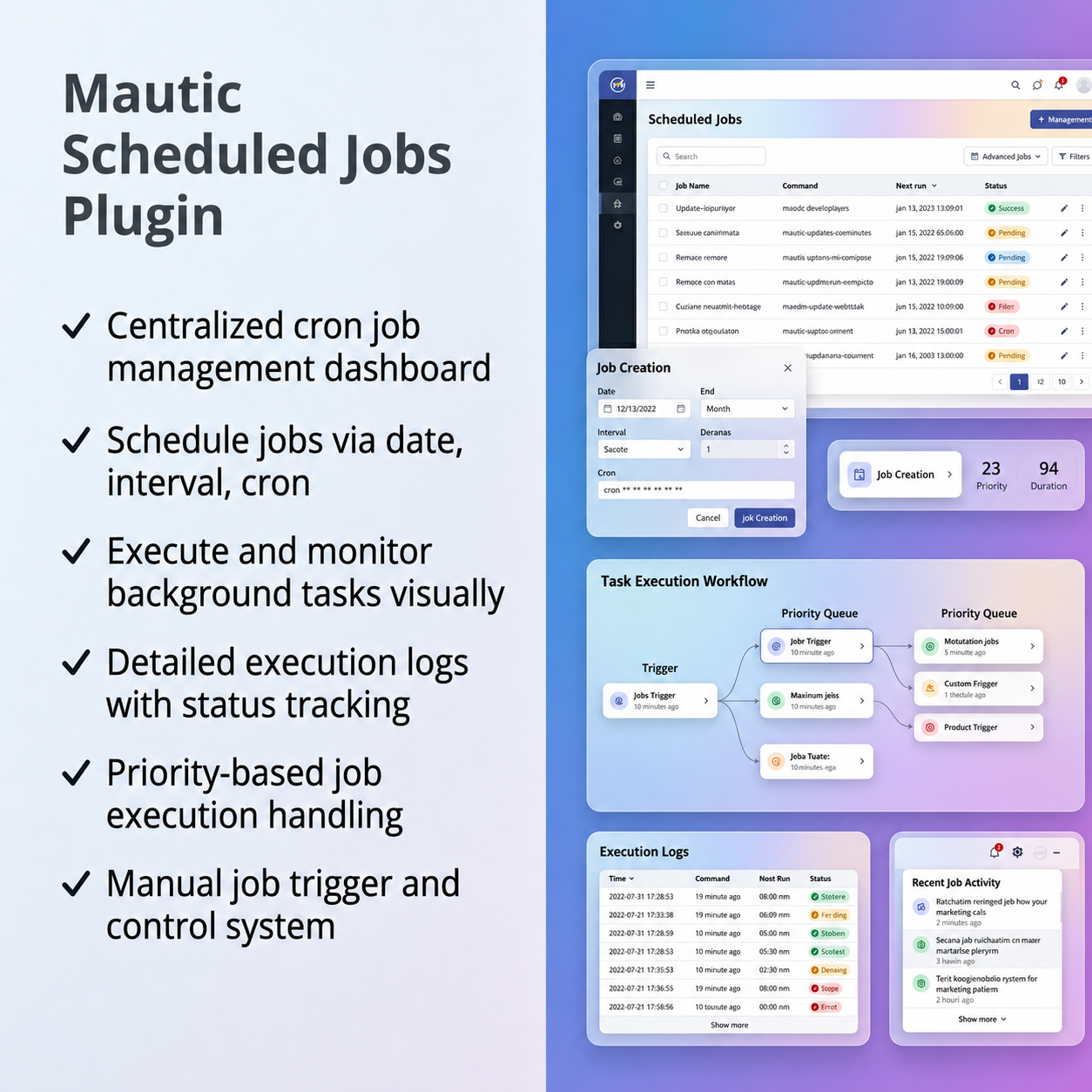
The CronScheduler Plugin allows administrators to Create, View, Update, and Delete (CRUD) scheduled jobs directly from the Mautic user interface. Each scheduled job represents a Symfony console command that will be executed according to a configured schedule.
Navigate to the Admin Panel→ Scheduled Jobs to access the job management interface.
From this section, you can:
Each job definition includes the command to run, optional arguments, scheduling configuration, and metadata such as the last execution time and next scheduled run.
| Field | Description |
|---|---|
| Name | Label of the job we create |
| Command | List of commands generated dynamically, which are available in the application |
| Trigger Mode | Cron notation, specific date/time, or dynamic trigger (e.g., run every 5 minutes, daily, or weekends) |
| Arguments | Some commands require arguments. For example: --campaign-ids=11,19 |
The plugin supports three different scheduling methods, allowing flexible control over how and when jobs are execute
This option allows you to schedule a job to run once at a specific date and time.
This scheduling mode is useful for tasks that only need to run a single time, such as:
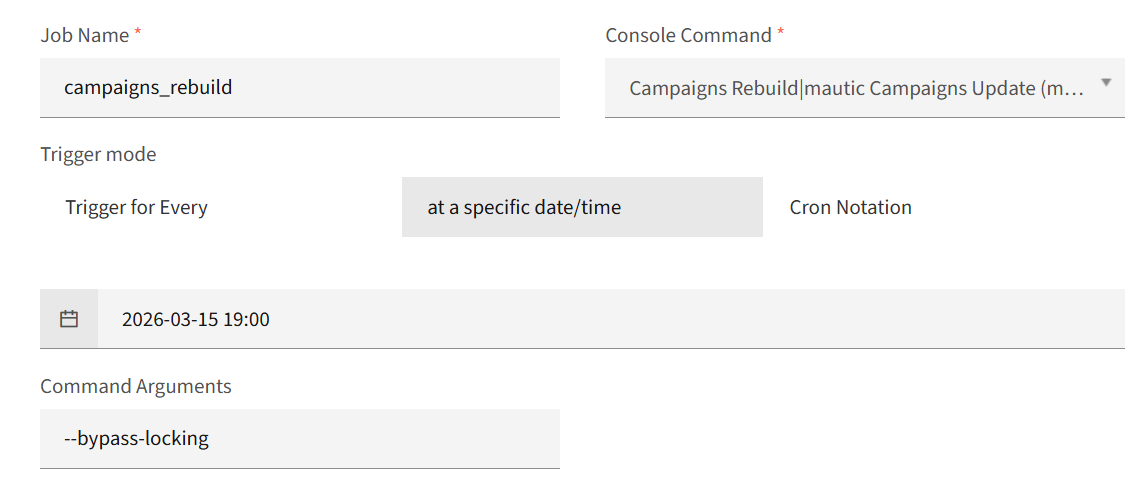
When configuring a job using this method:
Once the job executes successfully, it will not be scheduled again because it is designed as a one-time execution.
Interval scheduling allows a job to run repeatedly at fixed intervals such as every few minutes, hours, or days.
This method is useful for tasks that need to run periodically but do not require complex cron expressions.
Examples include:
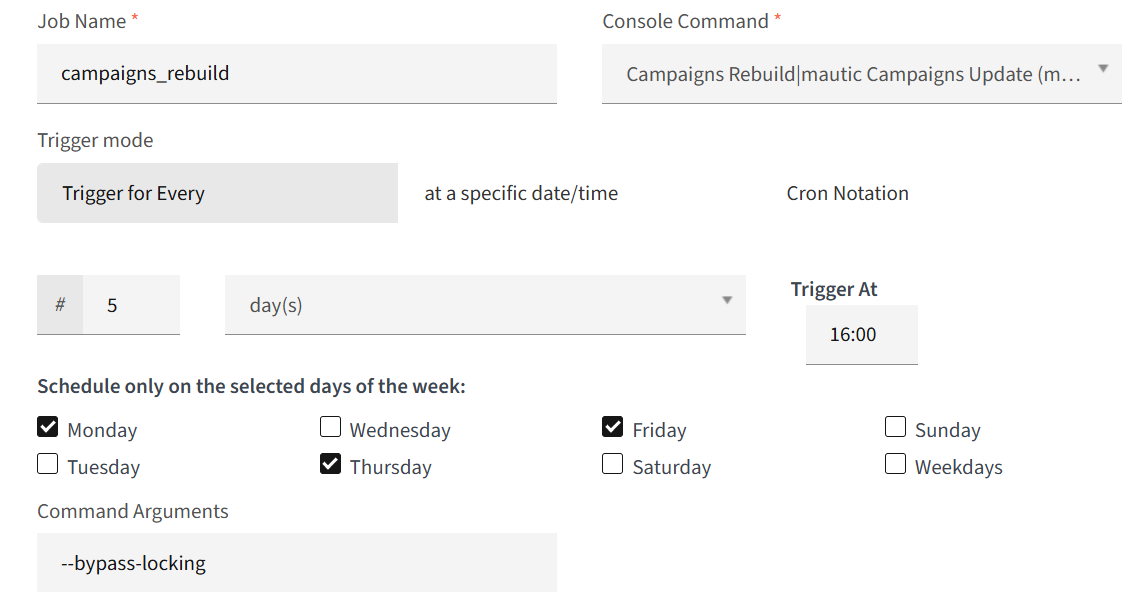
When configuring an interval-based job:
After each execution, the scheduler automatically calculates the next run time based on the configured interval.
For advanced scheduling scenarios, the plugin supports cron expression-based scheduling.
Cron notation allows highly flexible scheduling patterns using the standard cron format.
Examples:
| Cron | Description |
|---|---|
*/5 * * * * | Run every 5 minutes |
0 * * * * | Run at the start of every hour |
0 0 * * * | Run once every day at midnight |
0 9 * * 1 | Run every Monday at 9 AM |
When configuring a cron-based job:
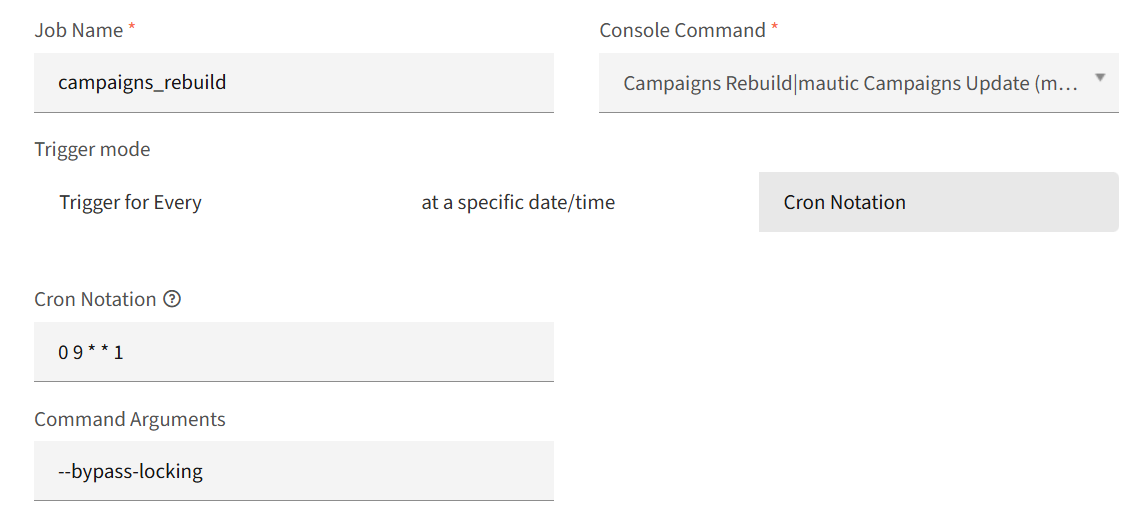
The plugin uses a cron parsing library to validate the expression and calculate the next execution time automatically.
Each job can have a priority value assigned to it. When multiple jobs are due to run at the same time, the scheduler executes them in order of priority.
Higher priority jobs are executed first, ensuring that critical background tasks are processed before less important ones.
In addition to automatic scheduling, administrators can also trigger jobs manually from the Scheduled Jobs interface.
When the Trigger button is clicked:
Manual execution is useful for testing job configurations or running commands on demand without waiting for the next scheduled run.
Once a job has been created, it appears in the Scheduled Jobs list view where administrators can:
Each job record also displays metadata such as:
This centralized management interface makes it easy to monitor and control background tasks running within the system.
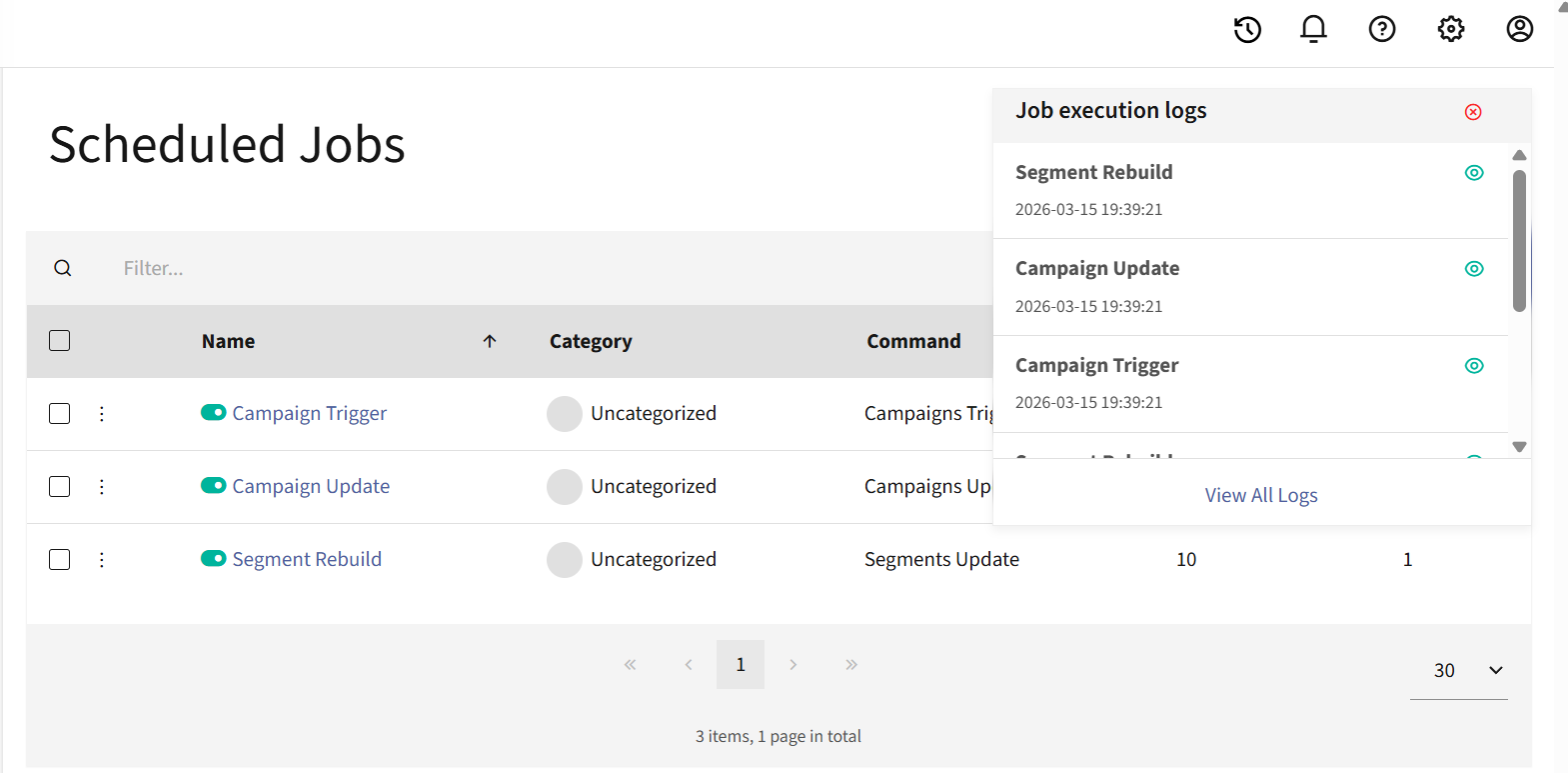
Every time a scheduled job runs, the plugin records detailed execution logs.
Each log entry stores:
These logs can be viewed:
This provides visibility into background tasks and helps diagnose issues when commands fail.
To prevent the database from growing excessively due to execution logs, the plugin includes a maintenance command that automatically removes older logs and which also comes with the plugin itself.
The number of days that logs should be retained can be configured in the application settings under Cron Scheduler configuration and by default it holds for 25 days.
The cleanup happens automatically for every 25 days by default and we can modify it through configuration if we want to remove it earlier to save DB.
The CronScheduler Plugin centralizes the scheduling and execution of console commands within the application. Instead of managing multiple system cron entries on the server, administrators can define jobs from the UI and allow the scheduler to determine when they should run.
The plugin works through a combination of scheduled job definitions, a scheduler service, and a single cron trigger command that periodically evaluates and executes due jobs.
By running mautic:jobs: trigger command alone can fetch all the created scheduled jobs and queue them to run based on the time interval.
When the plugin is installed, it automatically creates a set of default scheduled jobs required for core application background processing. This is handled by the plugin’s installation subscriber.
During installation, the system checks whether these jobs already exist. If they do not, the plugin automatically creates them.
The default jobs include:
| Job | Command | Schedule |
|---|---|---|
| Segment Rebuild | mautic:segments:update | Every 15 minutes |
| Campaign Update | mautic:campaigns:update | Every 15 minutes (offset) |
| Campaign Trigger | mautic:campaigns:trigger | Every 15 minutes (offset) |
These jobs ensure that important background processes, such as segment rebuilding and campaign processing, run automatically without requiring manual configuration.
| Version | V4.x, V5.x, V6.x, V7.x |
|---|
There are no reviews yet.