

AI Contact Timeline Plugin
The AI Contact Timeline Bundle provides a smarter way to understand and analyze individual contacts by turning their activity data into meaningful insights. Instead of manually reviewing timelines, users can instantly view detailed analytics for a contact over a selected time range—such as today, the last 7 days, months, or even years.
Beyond just displaying data, the plugin uses AI to generate clear explanations of a contact’s behavior, helping users understand engagement patterns, interests, and overall quality. It also goes a step further by offering actionable suggestions on what steps to take next—making it easier to convert contacts into high-quality leads.
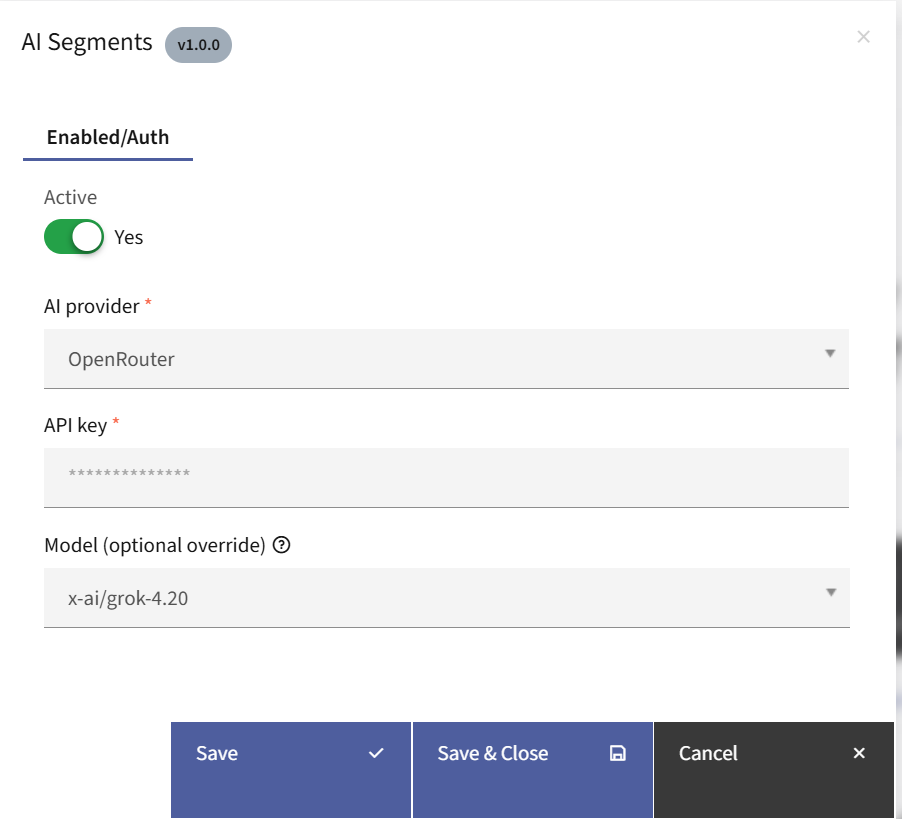
To enable these capabilities, the plugin integrates with leading AI providers such as OpenAI, Anthropic (Claude), Google (Gemini), and OpenRouter. Users can configure their preferred provider, model, and API key based on their requirements.
Overall, the AI Contact Timeline Bundle helps businesses move beyond raw data, enabling better decision-making, improved targeting, and more effective lead nurturing.
Installation & Setup
Prerequisites
- Administrative access to install plugins.
- Composer (if plugin dependencies are managed externally).
Installation Steps
- Copy the AIContactTimelineBundle into the application’s plugins/ directory
- Run the following commands:
- Log in to the application’s admin panel
- Navigate to Settings → Plugins
- Locate the plugin and configure:
- Select the desired AI Provider
- Enter the corresponding API Key
- Choose a model (optional)
php bin/console mautic:plugins:reload
php bin/console cache:clear
php bin/console mautic:assets:generate
Working of the Plugin
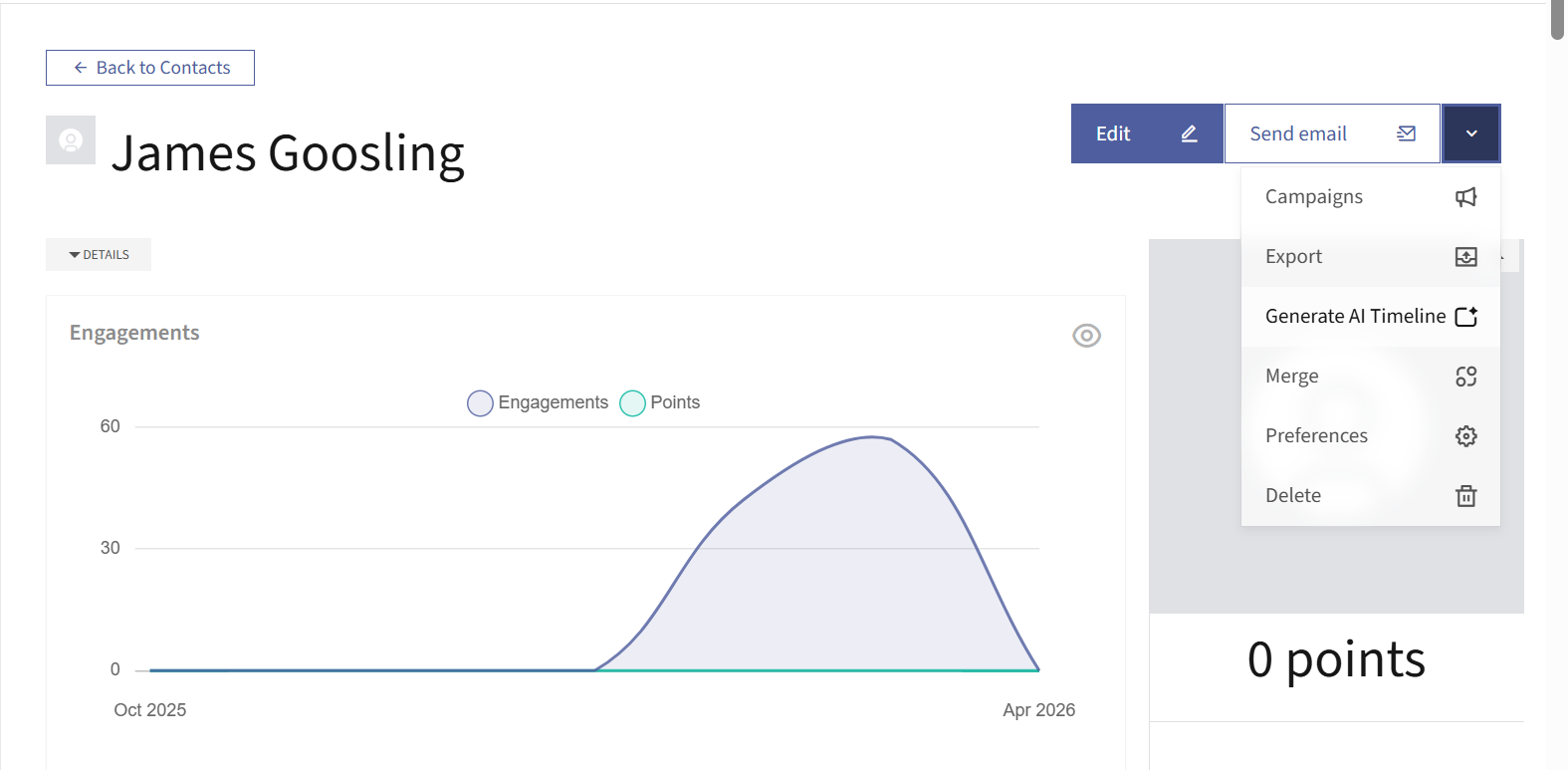
- Once the plugin is installed, a new option labeled “Generate AI Timeline” will appear in the dropdown menu next to the edit button within a contact’s detailed view.
- Clicking on “Generate AI Timeline” opens a popup where you can select a desired time range to analyze the contact’s activity.
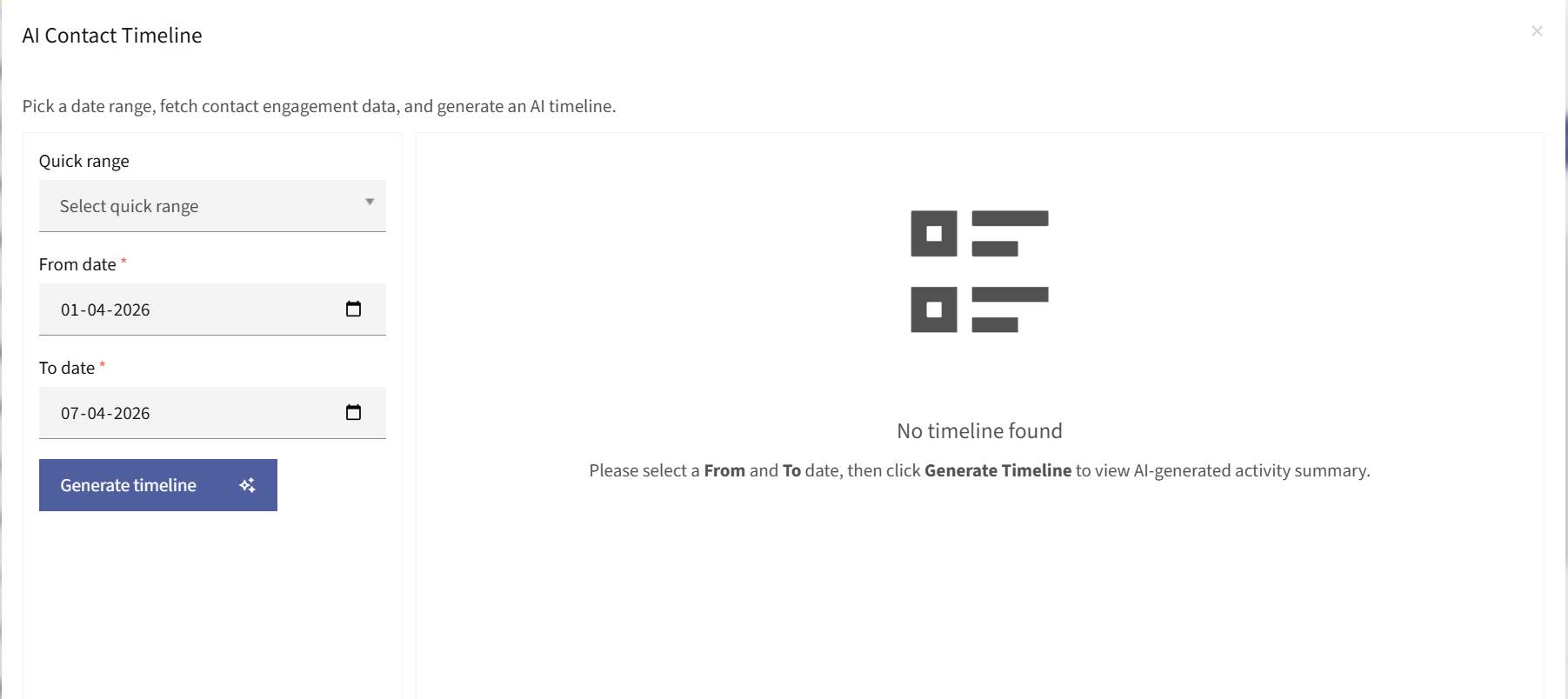
- After selecting the time range and clicking “Generate Timeline”, the system processes the data and displays AI-generated insights on the right-hand side. These insights include a clear summary of the contact’s behavior along with practical suggestions to improve engagement and conversion.